How to Measure the Eiffel Tower in CloudStation Viewer?

Knowledge 20260330

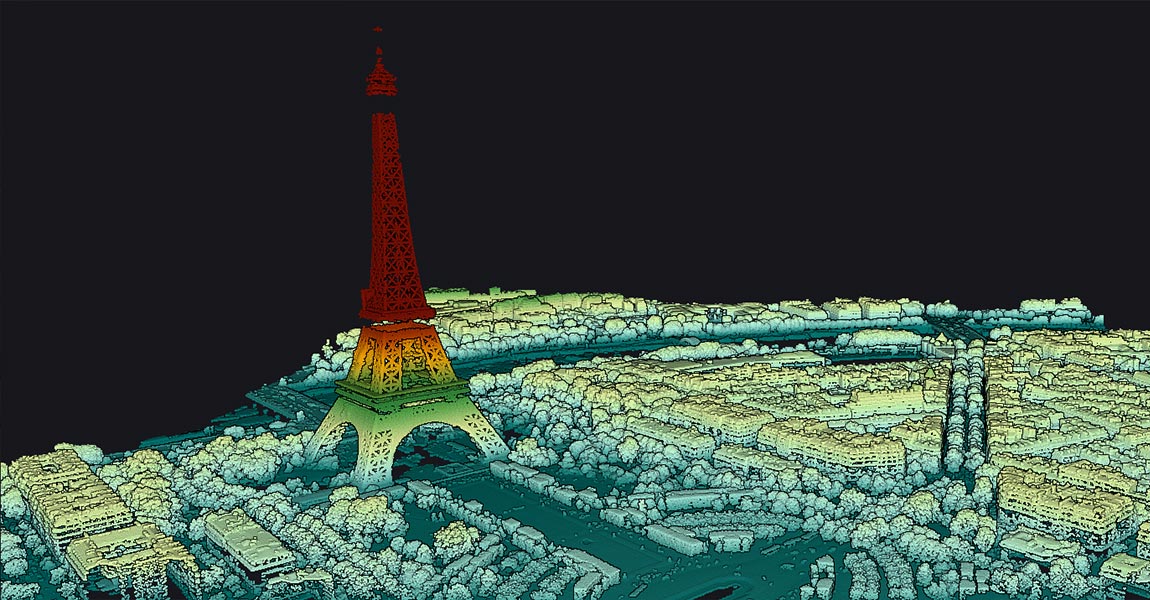
Learn how to measure the Eiffel Tower in just a few minutes using LiDAR technology:
In this tutorial, discover how the free YellowScan CloudStation Viewer software allows you to visualize and measure the Eiffel Tower in a 3D environment, thanks to LiDAR technology deployed by IGN as part of the national LiDAR HD program. This exercise will only take a few minutes!

Introduction

CloudStation Viewer is an intuitive tool equipped with simple features for analyzing all data in LAS format. LAS files can come from various technologies capable of generating point clouds, such as airborne LiDAR systems. The open LiDAR HD database allows everyone to download LAS files to analyze the topography of the French territory.

To illustrate the use of this database, we have chosen an iconic site: the Eiffel Tower.

Step 1: Download CloudStation Viewer

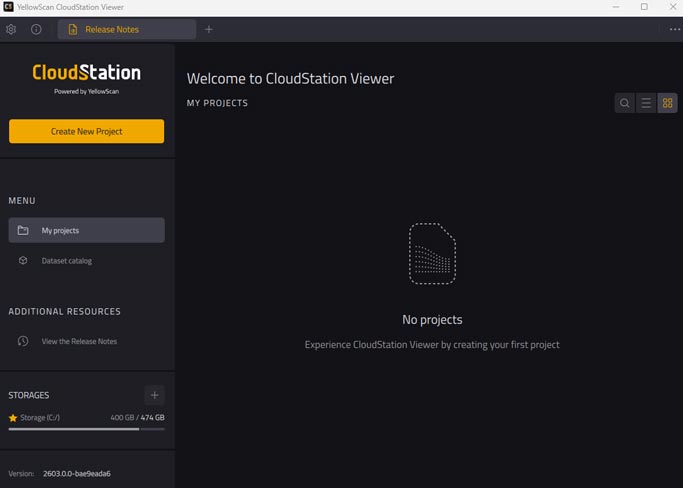
1° Download the software for free from the official website: Download Link

2° Install the software and create your account.

Once installed, the software operates locally, allowing you to create your own dataset catalog even without an internet connection.

Step 2: Download LiDAR HD Data

Go to cartes.gouv.fr and check if the Digital Terrain Model (DTM) exists for the area of interest.

Search for LiDAR data to download

Search for data to download.

For Paris, the KE zone contains the necessary data.

Zoom in on Paris and download the dataset including the Eiffel Tower: LHD_FXX_0648_6863_PTS_O_LAMB93_IGN69.

Step 3: Open the Dataset in CloudStation Viewer

Open CloudStation Viewer and click on “Create a new Project“.

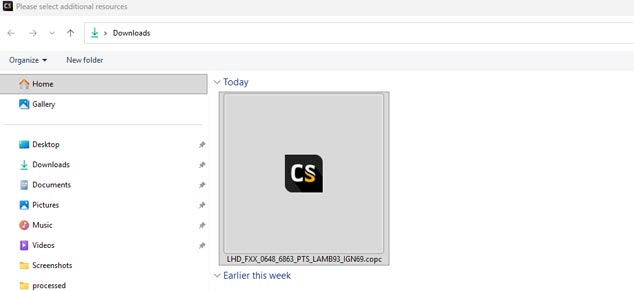
2° Add the downloaded LAS file to the “Resources” section (by drag-and-drop or by clicking on “+“).

Cloudstation Viewer Las file selection

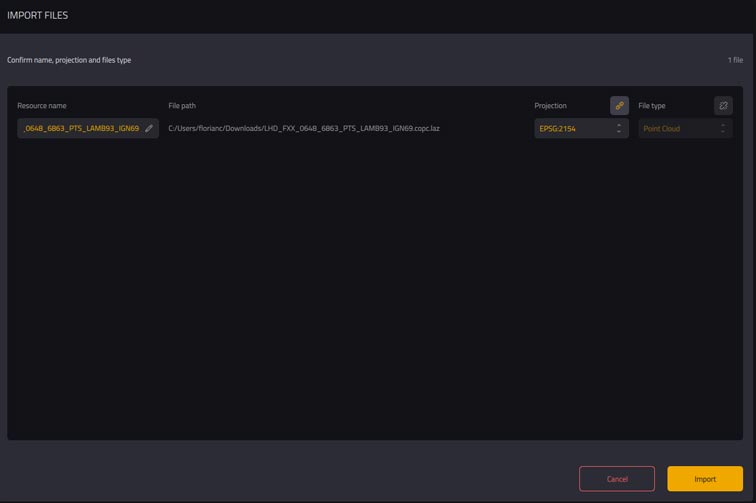
Click on “Import” and wait a few seconds.

Cloudstation Viewer open Las file

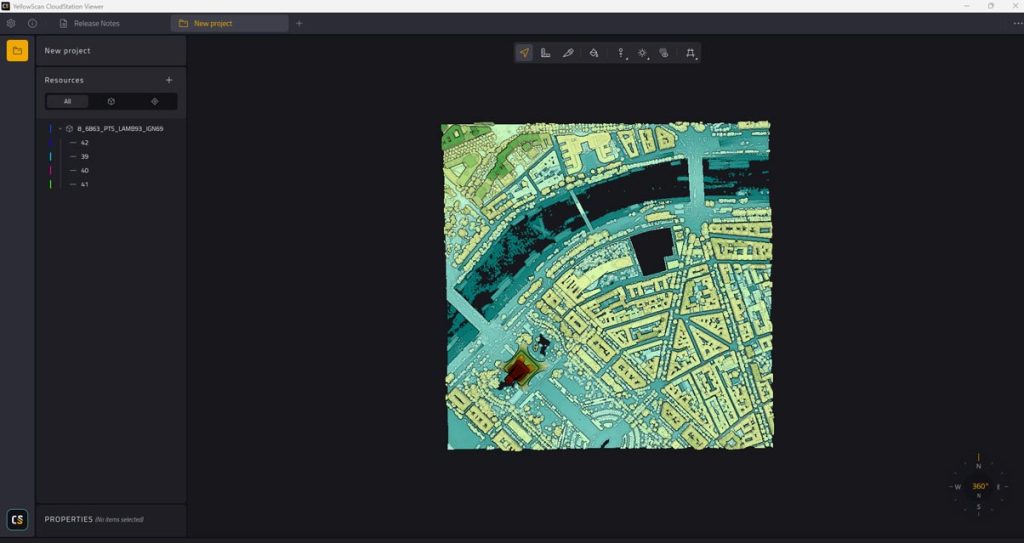
The point cloud will appear on the screen. You can close the “Resources” bar by clicking on “Project“.

Eiffel Tower pointcloud visualization

Step 4: Explore the Point Cloud

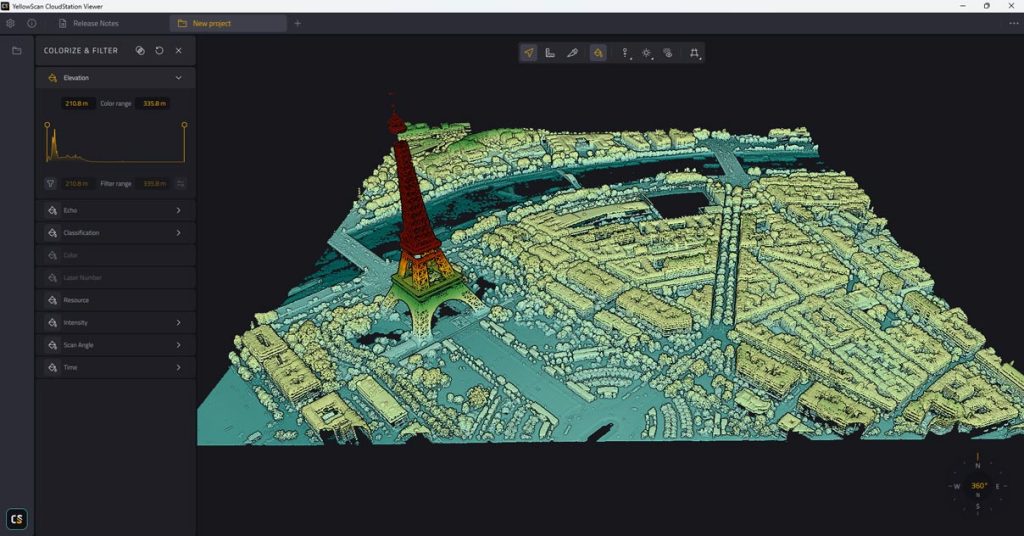
By default, the point cloud is displayed in “Elevation” view, highlighting altitude differences.

  • Toolbar: At the top of the screen, you can navigate through the point cloud and perform height, width, and length measurements.
  • Point Size: Use the “Point size” function to adjust the size of the points.
  • Colors and Classification: The “paint pot” tool allows you to vary colors and access the classification integrated into the file.
CloudStation Viewer elevation view

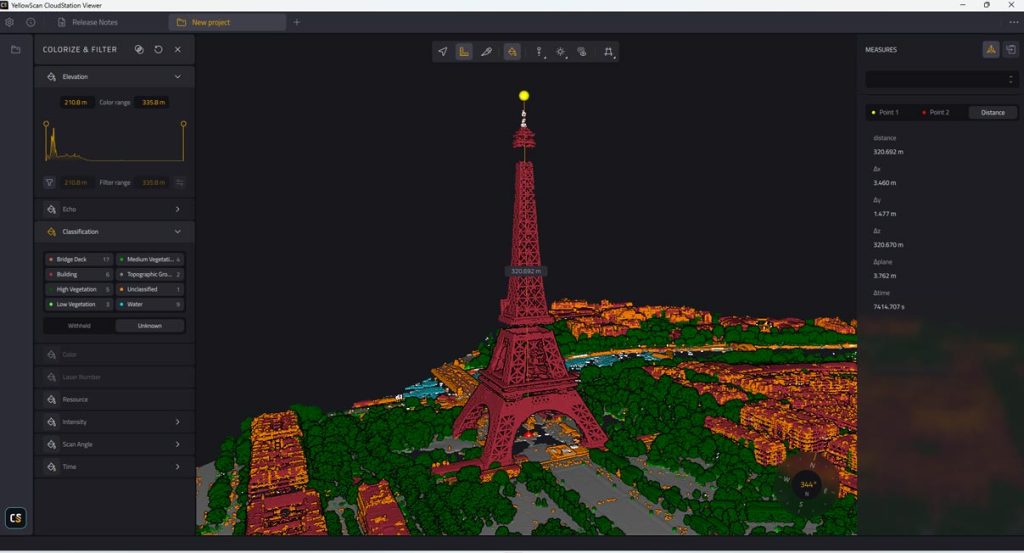
Elevation view of the Eiffel Tower in the CloudStation Viewer software

Step 5: Filter Classes

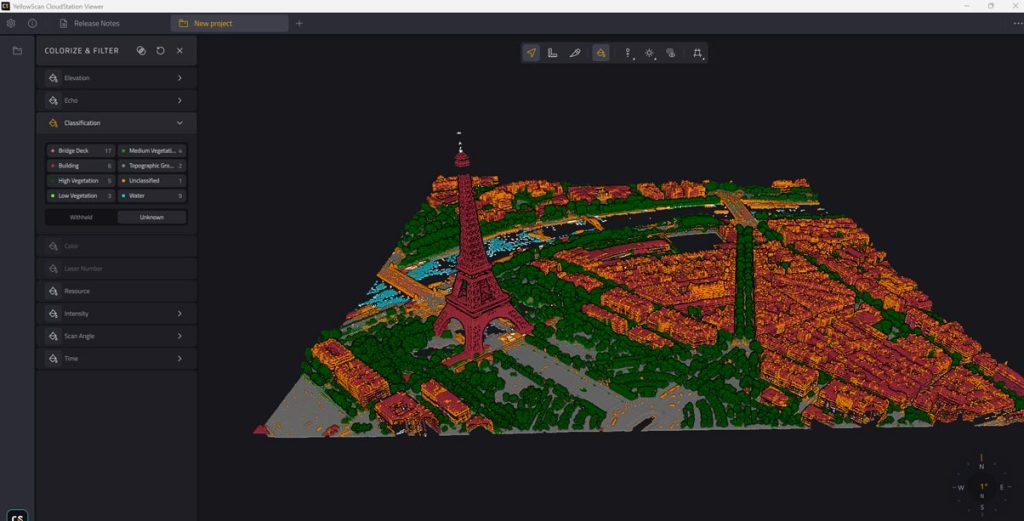
The new version of CloudStation Viewer automatically integrates the point cloud classes.

Classification view on the CloudStation Viewer software

Classification view on the CloudStation Viewer software

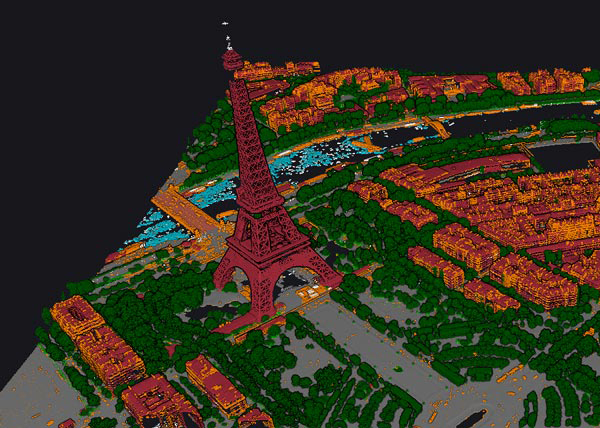
By clicking on the available classes, you can make elements of each class disappear or appear.

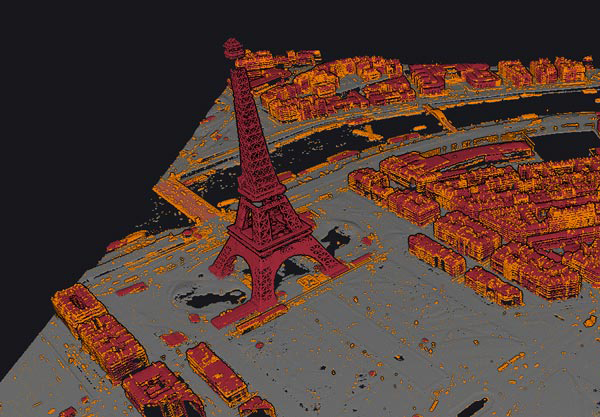
CloudStation Viewer - without classification

CloudStation Viewer – complete pointcloud

CloudStation Viewer - ground & buildings classification

CloudStation Viewer – ground & buildings classification

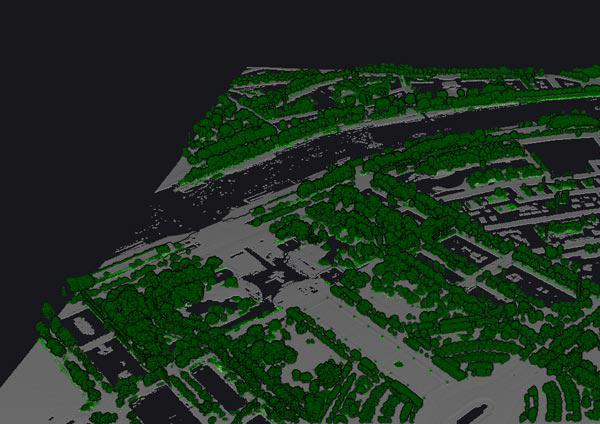
CloudStation Viewer - ground & vegetation classification

CloudStation Viewer – ground & vegetation classification

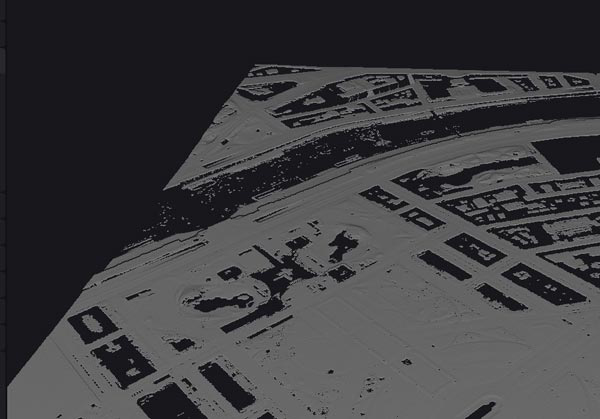
CloudStation Viewer - ground only classification

CloudStation Viewer – ground only classification

Deselect vegetation-related classes to visualize the city’s reliefs without vegetation.

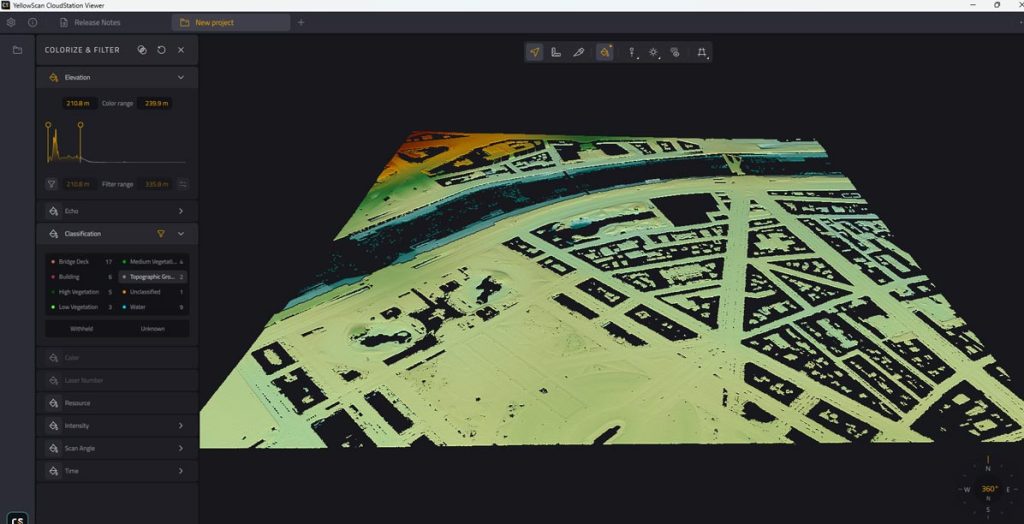
Keep only the “Topographic Ground” class to visualize the ground layer and reliefs.

CloudStation Viewer - ground classification

CloudStation Viewer – topographic ground classification

Step 6: Measure the Eiffel Tower

Option 1: Direct Measurement

Use the “Measures” tool.

Click on the highest point of the Eiffel Tower, then on the ground, targeting a central area under the monument.

If the Δz value is close to 320.90 m, congratulations! This value corresponds to the height measured in the digital model. (Note: The antenna at the top of the tower is not fully represented in the model.)

Direct measure of the Eiffel Tower in the CloudStation Viewer software

Direct measure of the Eiffel Tower in the CloudStation Viewer software

Option 2: Measurement in Cross-Section

Use the “Switch Camera” tool to select “Orthographic Camera” and view the point cloud from above.

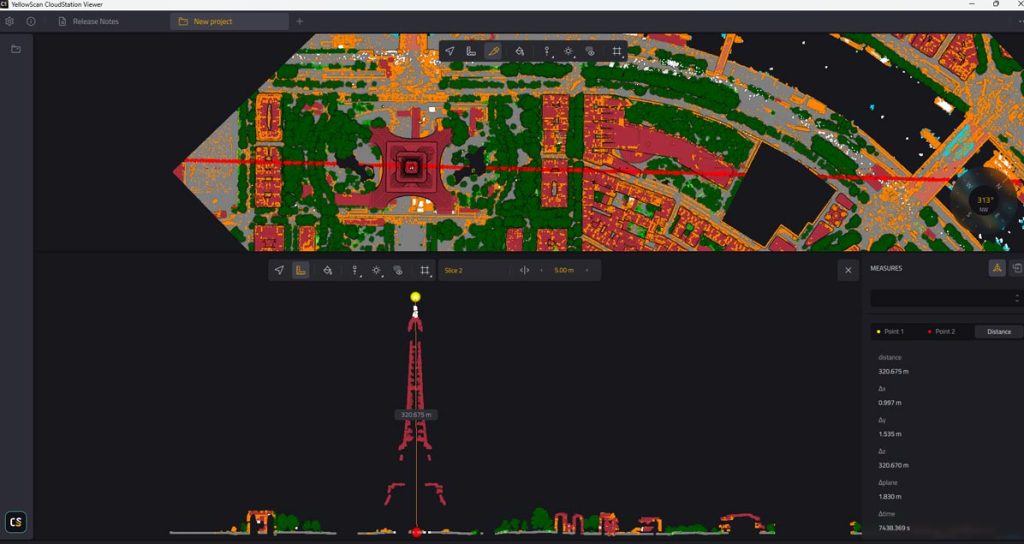
Create a cross-section with the “Slice” tool, ensuring it covers the top of the Eiffel Tower.

In the cross-section view, zoom in or out to improve visibility.

Adjust the cross-section thickness (from 0.20 m to 5 m) to enhance definition.

Use the measurement tool to measure the height from the top to the ground. You will get a value close to 320.7 m.

Measurement of The Eiffel Tower in cross-section in the CloudStation software

Measurement of The Eiffel Tower in cross-section in the CloudStation software

Conclusion

Thanks to CloudStation Viewer and LiDAR HD data, you can explore and measure iconic monuments like the Eiffel Tower in 3D. This tutorial has guided you through the key steps to visualize and analyze this data.

Feel free to explore other sites and share your discoveries!

Read more about our free CloudStation Viewer software